


Schedule courses and recurring classes with Vibefam’s fitness class booking software
If you are looking for fitness class booking software that can handle weekly recurring classes, multi week programmes and fixed term courses in one place, Vibefam is built for exactly that.
On the Professional plan, Vibefam lets you:
- Schedule Courses for term programmes, camps and workshops that run on specific dates. (Vibefam Support)
- Create recurring Group Classes that repeat on a weekly pattern, without manually adding every session. (Vibefam Support)
- Use Repeat Bookings to lock key members (for example, kids) into a fixed weekly slot automatically. (Vibefam Support)
- Edit multiple sessions in bulk when instructors, times or rooms change. (Vibefam Support)
- Members see everything in one booking app and website, book on mobile, and pay through local payment methods that Vibefam supports across Asia. (vibefam.com)
The rest of this guide walks through what Courses and recurring classes actually are, when to use each, and the exact steps to set them up inside Vibefam.
What do “courses” and “recurring programmes” mean in a booking system?
In studio software, courses and recurring classes solve two slightly different problems.
A course (sometimes called a term, programme or series) is a fixed set of dates that belong together. Think of a 6 week dance term, a three day workshop, a summer camp, or a graded exam block. The same group of students usually stays together from start to finish. Vibefam’s support guide describes courses as ideal for “events, workshops or classes that take place on a set of specific dates and timings, for example term classes, three day events or guest instructor workshops”, especially in dance schools and sports academies. You create them via Schedule → Add Event → Course. (Vibefam Support)
A recurring class is a regular class that repeats on the same weekly pattern, such as every Monday at 7 pm, or Monday and Wednesday at 6 pm. Most gyms and studios depend on these for their main timetable. Vibefam’s scheduling guide explicitly calls out that “most classes recur weekly” and provides built in recurrence patterns so you do not have to set up each class one by one. (Vibefam Support)
In practice:
- Dance schools and sports academies tend to use Courses for term based progression. (Vibefam Support)
- Yoga, pilates, strength and martial arts studios tend to rely on recurring Group Classes for their weekly timetable, with Courses used for special series like beginners’ programmes or workshops. (vibefam.com)
Both types appear in Vibefam’s admin calendar and member facing booking channels. You decide which structure fits a given programme best.
Why should studios use software that automates recurring classes and series?
Trying to manage recurring classes and multi week programmes with spreadsheets or simple calendar tools usually leads to the same problems:
- You duplicate the same class over and over and forget to update one of them.
- You lose track of which students are meant to be in which term programme.
- You open “ghost” slots that look free to members but are actually reserved.
- You spend time moving bookings whenever an instructor or time changes.
Vibefam’s own buying guides for gyms and martial arts schools stress that a modern booking system should let you create recurring schedules, set capacity and run waitlists automatically, rather than asking you to manage each session by hand. (vibefam.com)
In Vibefam, automating this has three practical benefits:
- Admin time drops – you set up a pattern once, then use tools like bulk editing instead of fixing dozens of sessions individually. (Vibefam Support)
- Revenue becomes predictable – term Courses and recurring classes plug directly into packages, memberships and local payment methods such as PayNow, FPX and GrabPay, which Vibefam supports through its integrated gateway. (vibefam.com)
- Member experience improves – clients see a consistent timetable in the app, book recurring sessions, and receive automated reminders. (vibefam.com)
Once you treat Courses and recurring classes as building blocks inside your system, everything downstream – attendance, payroll, analytics – becomes easier to manage.
How does Vibefam support courses and recurring classes on the Professional plan?
At a high level, Vibefam separates things into:
- Group Classes – ongoing or recurring classes that appear on your normal timetable.
- Private Classes – one to one or small group sessions that are not listed publicly.
- Courses – a sequence of classes on specific dates, usually with a fixed cohort and commitment. (Vibefam Support)
- Appointments – bookable 1:1 sessions (e.g., personal training or consultations) that members schedule based on real-time availability via an Appointment tab, and you manage in your admin portal. (Vibefam Support).
On the Professional plan, you unlock dedicated tooling for Courses:
- The pricing page confirms that “Schedule Courses” is a Professional plan feature, layered on top of the Most Popular plan’s existing class scheduling, booking website and local payments. (vibefam.com)
- The configuration guide shows that Courses have their own tab, where you define Course Types like “Beginner Ballet Term” or “Intermediate Football Programme” that you can later use for filtering and reporting. (Vibefam Support)
- The Add Class Schedule guide explains how Courses are created from the Schedule tab and points out that they are especially common in progressive, series based activities like dance schools and sports academies. (Vibefam Support)
On all paid plans, Vibefam also lets you:
- Set recurrence patterns for Group and Private Classes so they repeat weekly on the days you choose. (Vibefam Support)
- Add Repeat Bookings for individual members so the system keeps them in the same weekly slot automatically. (Vibefam Support)
- Use bulk editing to update a run of existing sessions when something changes. (Vibefam Support)
So the typical pattern is:
- Use Courses for fixed length programmes or camps, especially in dance and sports.
- Use recurring Group Classes for your main weekly timetable.
- Use Repeat Bookings when you want a specific member to hold the same weekly slot without manual re booking.
The next sections walk through exactly how to set these up.

How do you create a Course in Vibefam’s admin portal?
Step 1: Configure your Course types
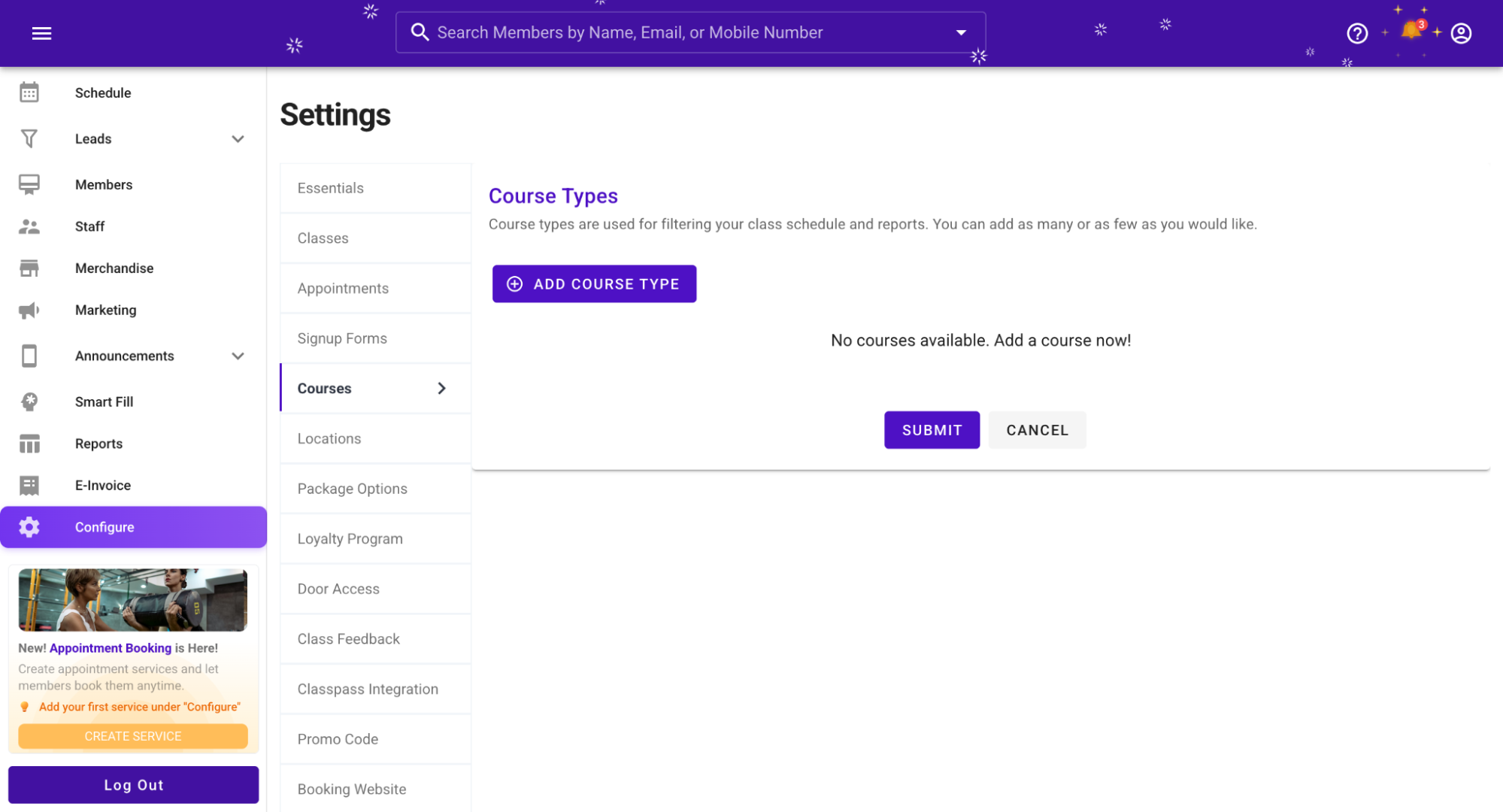
Before you schedule a specific course, it helps to define your Course Types, which are used for filtering schedules and reports.
- In the business portal, go to Configure → Courses. (Vibefam Support)
- Click Add Course Type.
- Name each course type clearly, for example “Beginner Ballet Term”, “Junior Football Programme” or “Holiday Camp”.
- Save your changes.
The configuration guide notes that Course names cannot be empty and that you can add as many types as you need for your reporting. (Vibefam Support)

Step 2: Add a new Course event from the Schedule tab
Now you are ready to schedule a live course.
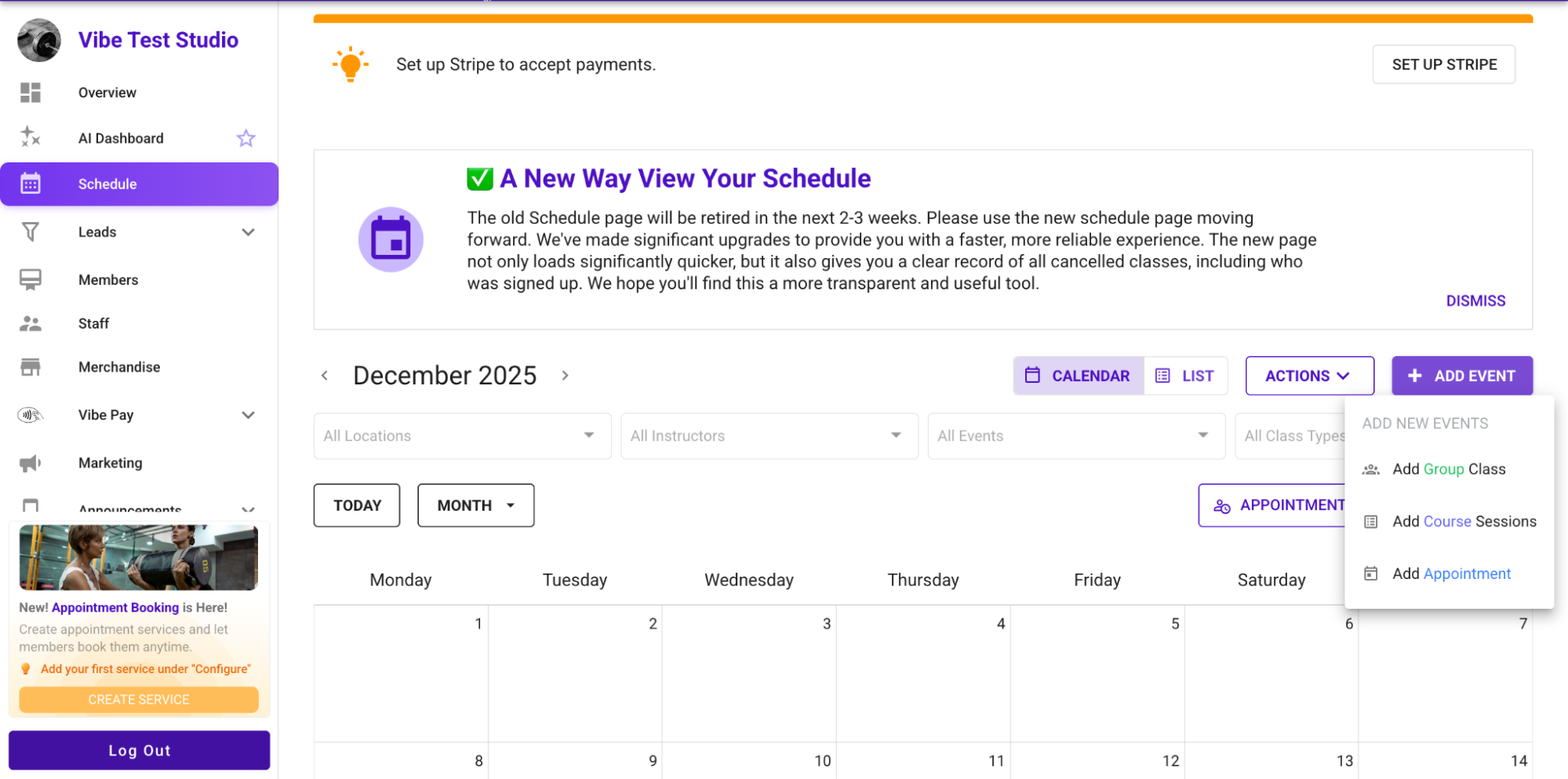
- Go to the Schedule tab in the admin portal. (Vibefam Support)
- Select Add Event → Course.
- Give your course a clear name that members will recognise, for example “Summer Hip Hop Camp – Level 1” or “12 Week Kids’ Taekwondo Term”.
- Choose the location, instructor and floorplan (capacity) so the course appears correctly on your timetable. (Vibefam Support)
Courses are available only on the Professional plan, as confirmed on both the support article and the pricing page. (Vibefam Support)
Step 3: Set dates and times for each session in the course
A key difference between a Course and a recurring Group Class is how you handle dates.
- For a Course, you explicitly pick the dates and times that belong to this programme.
- You might, for example, add six Saturdays at 3 pm for a six week dance term, or three consecutive mornings for a camp.
- The Add Class Schedule guide shows course setup screenshots where each date is listed as part of the same course, rather than as separate independent classes. (Vibefam Support)
This gives you a single course object that knows:
- which sessions belong together, and
- who is enrolled across the full series.
Step 4: Configure registration behaviour, including join after start
Vibefam lets you decide how strict your enrollment rules should be.
When creating or editing a course, you can:
- Set when enrolment opens and closes, for example two weeks before the course starts.
- Decide whether members can join after the course has started by toggling the “join after start” option in the course settings. (Vibefam Support)
The support article explicitly reminds studio owners to turn this on if they want to allow late joiners. (Vibefam Support)
In practice, many studios:
- Keep “join after start” off for intensive programmes where each session builds on the last.
- Turn it on for more flexible series like beginner blocks, where someone can safely join in week two or three.
Step 5: Link the course to packages or memberships
Courses still rely on the same package and membership logic as your regular classes:
- Courses can be covered by a specific course package that you set up under Packages and Memberships, with credits and validity configured for the course length. (Vibefam Support)
- Alternatively, you can allow standard packages or memberships to be used for course sessions by assigning credit values and class type restrictions appropriately. (Vibefam Support)
Depending on how you structure your packages:
- You might effectively have the course paid for up front, as a single purchase mapped to all sessions.
- Or you might let members use credits per session, while still benefiting from the clearer course grouping in your calendar and reports.
Either way, bookings and credit usage are tracked through Vibefam’s reporting and AI dashboard features, which highlight booking trends and class performance patterns. (Vibefam Support)
How do you schedule weekly recurring classes in Vibefam?
For your standard timetable, recurring Group Classes are usually the right fit.
Step 1: Create a Group Class template
- From the Schedule tab, click Add Event → Group Class. (Vibefam Support)
- Fill in the class details: name, instructor, floorplan, credit value and any virtual class link if applicable. (Vibefam Support)
- Set booking rules such as release period, booking deadline, and waitlist lock period so your policies are enforced automatically.(Vibefam Support)
Once you have a reliable template, you can reuse it for different days or time slots.

Step 2: Set recurrence patterns instead of creating classes one by one
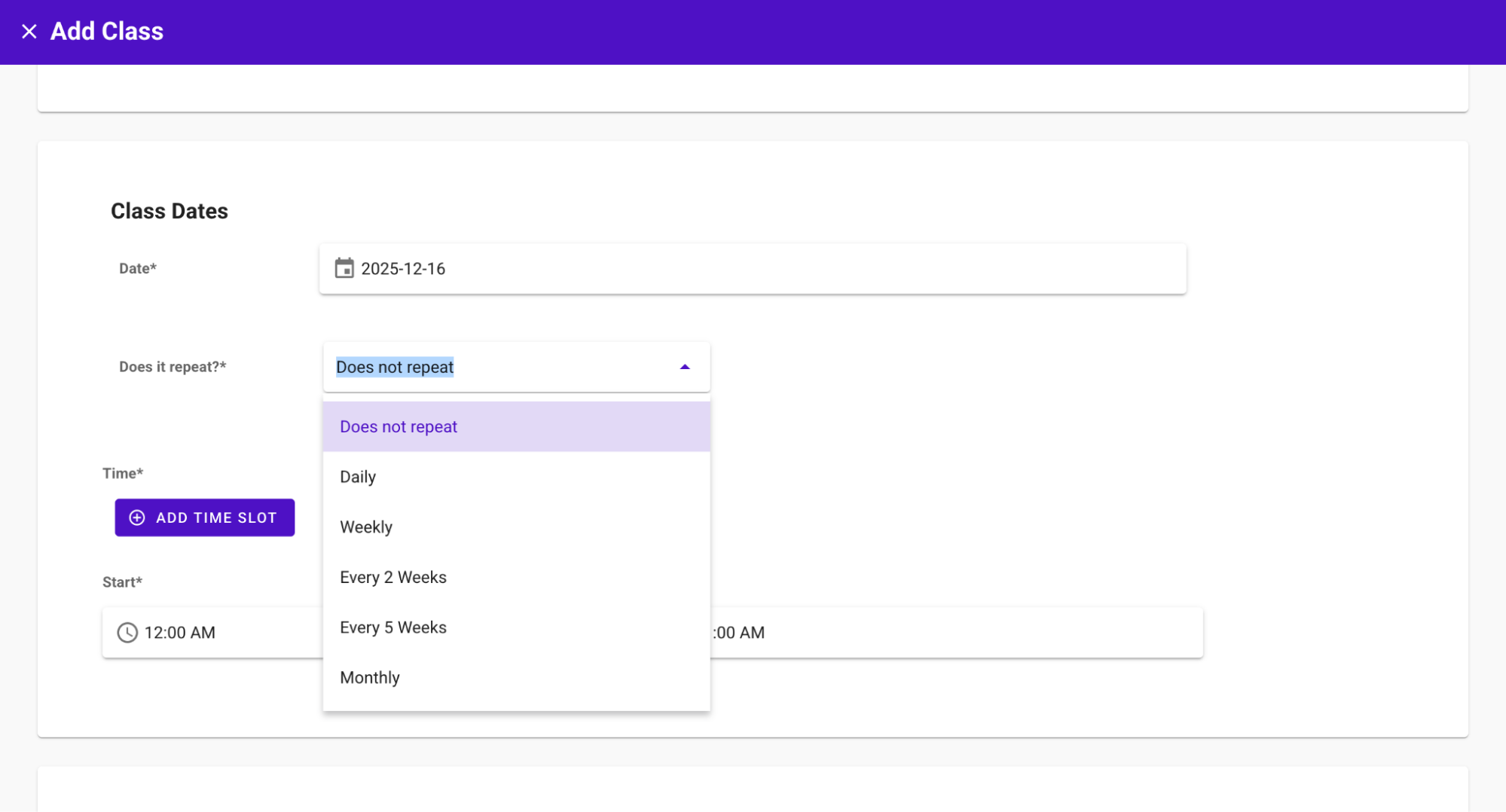
The scheduling guide emphasises that “most classes recur weekly” and that Vibefam gives you pre set recurrence patterns to avoid manual duplication. (Vibefam Support)
When configuring dates and times for a Group Class:
- Choose your start date and time.
- Pick a recurrence pattern, for example:
- every Monday
- every Monday and Wednesday
- or another multi day pattern that suits your timetable.
- Set a recurrence end date – this is compulsory so the system knows when to stop generating sessions. (Vibefam Support)
If you run seasonal schedules, you can set the end date at the end of the term and then create a new series later.
Step 3: Attach packages, memberships and drop in options
Just as with Courses, recurring classes connect to your packages and memberships:
- Under Packages and Memberships, you define which packages can be used for which class types, locations and times. (Vibefam Support)
- You assign a credit value to each class – for example 1 credit per standard class or 2 credits for a longer or premium session. (Vibefam Support)
This determines how credits are deducted when members book recurring sessions.
If you offer unlimited memberships, you can set high credit ceilings and use booking limits or cancellation rules to prevent abuse, as explained in the package configuration guide. (Vibefam Support)
How do members see and book Courses and recurring classes?
From a member’s point of view, the experience should feel simple.
Calendar and booking website
- All scheduled items appear in the admin calendar, where you can filter by Classes or Courses, location, instructor and class type. (Vibefam Support)
- On the member facing booking website, courses and classes show according to your chosen layout and colour scheme, which you configure under Booking Website settings. (Vibefam Support)
- Members can also book through the Vibefam mobile app, which is emphasised on the main site as the primary way for members to discover and book classes. (vibefam.com)
You choose whether courses appear alongside normal classes or in a dedicated section, depending on your booking website layout.
Booking into Courses versus recurring classes
In practice:
- For a Course, members usually see a single programme card that lists all session dates. They enrol into the course as a whole, and the system schedules them into each session. Credit handling depends on how you set up the package that covers the course. (Vibefam Support)
- For recurring Group Classes, members see each session on the timetable and book either one class at a time or a sequence of dates that fit their schedule, within the rules of their package or membership. (Vibefam Support)
If you allow late joiners in a course, the system will still add them to all future sessions once they enrol, as long as the “join after start” option is enabled. (Vibefam Support)
How can you lock members into a repeating weekly slot with Repeat Bookings?
For kids’ classes and high demand time slots, many studios want members to keep the same weekly slot without re-booking every month.
Vibefam’s Repeat Bookings feature, released in 2025, addresses this directly:
- The support article describes Repeat Booking as a way to lock a student into a fixed weekly class slot automatically, with future sessions showing as “unpaid bookings” until the next payment cycle is processed. (Vibefam Support)
Key benefits highlighted are:
- no more repeat booking tasks
- consistent weekly schedules for kids’ classes
- fewer “oops, that slot was taken” moments
- more time for admins to focus on meaningful work. (Vibefam Support)
To set up Repeat Bookings:
- Open the Studio Admin dashboard and go to Schedule.
- Open the class that the member attends. (Vibefam Support)
- Find and select the member’s name.
- Toggle on Repeat Booking for that member.
- Decide how long it should repeat – indefinitely, or until a specific end date.
- Assign a package that will cover these repeat bookings. Initially, future sessions appear as unpaid; when you assign or renew a package, you can map those unpaid sessions to the package. (Vibefam Support)
- Verify the repeat booking in the Repeat Bookings / Recurring Enrolments list and in your class calendar.
Repeat Bookings sits on top of your existing recurring class schedule. It is about locking enrolments, not restructuring the timetable itself.

How do you edit multiple course dates or recurring classes in bulk?
Schedules change. Instructors go on leave, school holidays appear, or you need to shift a whole block of evening classes.
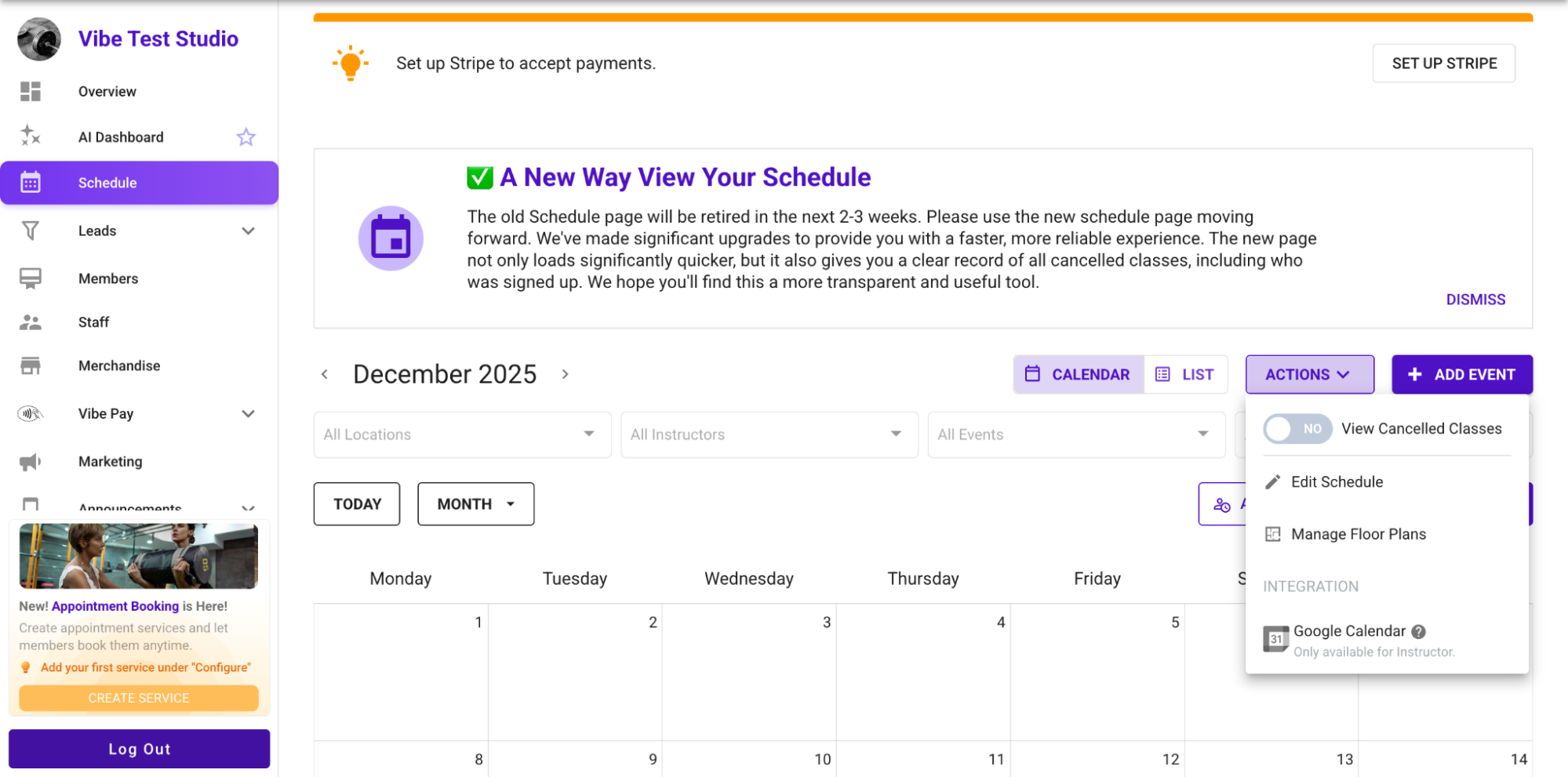
Instead of editing each session individually, Vibefam lets you edit classes in bulk:
- Go to Schedule → Actions → Edit Schedule. (Vibefam Support)
- Use filters such as date range, day of week, time, class name, instructor, location or class type to find the set of sessions you want to change. You only need to fill the fields that matter for your search. (Vibefam Support)
- Select all relevant sessions and click Next.
- Specify the changes, for example:
- change instructor
- adjust time or duration
- move to another location or floorplan
- update capacity or other settings. (Vibefam Support)
- Save your changes.
The support article emphasises that this is ideal when you “made a mistake” or want to edit multiple classes at once, without touching each entry. (Vibefam Support)
For Courses, bulk editing works similarly, but you will typically edit only the sessions belonging to that course type or date range.
Real examples: when to use Courses versus recurring Group Classes in Vibefam
Example 1: Dance school running term based courses
A dance academy that runs graded classes in 12 week terms might:
- Define Course Types such as “Ballet Grade 1 Term”, “K-Pop Beginners Term” and “Jazz Intermediate Term”. (Vibefam Support)
- Use Courses to schedule each term, with 12 specific dates.
- Allow enrolment only before the term starts, without “join after start”. (Vibefam Support)
- Attach a term package that covers the full course.
This keeps cohorts stable, payments predictable and reporting clean, which is how Vibefam positions its sports and dance school tooling. (vibefam.com)
Example 2: Fitness studio running ongoing weekly classes
A boutique yoga and strength studio might:
- Set up recurring Group Classes like “Monday Power Yoga 7 pm” and “Wednesday Strength 6.30 pm”, with end dates aligned to their seasonal timetable. (Vibefam Support)
- Sell recurring memberships and class packs that cover these sessions, all processed through Vibefam’s local payment integration and tap to pay features. (vibefam.com)
- Use Repeat Bookings for popular kids’ or foundations classes, so certain members always hold the same slot. (Vibefam Support)
Courses might still be used for special six week beginner blocks or seasonal challenges, but the core timetable runs on recurring Group Classes.
Best practices and common mistakes when configuring recurring schedules in Vibefam
Best practices
Choose the right structure for the job
Use Courses for fixed term, progressive programmes with a clear end date, and recurring Group Classes for ongoing timetable items. This mirrors how Vibefam’s own documentation distinguishes term classes and events from standard weekly classes. (Vibefam Support)
Name everything clearly and consistently
Use naming patterns like “Term 1 2025 – Ballet Grade 2” or “Weekly – Monday Power Yoga”. Clear names help when you filter in Edit Schedule or reporting. (Vibefam Support)
Always set recurrence end dates
Vibefam marks the recurrence end date as a required field to avoid endless session generation. Align end dates with your term or seasonal schedule and create a new recurrence when you plan the next cycle. (Vibefam Support)
Let packages mirror how your programmes work
Term programmes usually work best with dedicated term packages, while weekly classes fit recurring memberships and class packs. This is reflected in Vibefam’s own guides on flexible class passes and recurring memberships. (vibefam.com)
Use Repeat Bookings tactically
Reserve Repeat Bookings for situations where the same member must hold a slot every week, such as kids’ classes or premium small group sessions. The official support article suggests this is particularly useful for children’s classes and preventing “taken” slots. (Vibefam Support)
Common mistakes to avoid
Using recurring Group Classes for term based programmes that need firm commitment
This can make it harder to track who is meant to attend every week and to enforce term fees. Courses are designed for these scenarios. (Vibefam Support)
Forgetting to align packages with course length
Selling a generic 10 class pack for an 8 week course may confuse members and complicate credit handling. Use clearly named, course specific packages where possible. (Vibefam Support)
Leaving recurrence end dates too far in the future
If you set overly long recurrence periods, it becomes harder to adjust your timetable and forecasting. Following Vibefam’s own example of aligning recurrence with a clear period (for instance a term or year) gives you more control. (Vibefam Support)
Not using bulk edit when timetables change
Manually editing individual sessions is slow and error prone. The support guide recommends using Schedule → Actions → Edit Schedule whenever you need to adjust multiple classes at once. (Vibefam Support)
FAQs: Vibefam’s fitness class booking software for courses and recurring classes
Can I run both Courses and recurring Group Classes at the same time in Vibefam?
Yes. Vibefam is designed for studios that mix term based programmes, ongoing weekly classes and workshops. You configure Course Types and class types separately and see everything in the same Schedule calendar, which can be filtered by Classes or Courses. (Vibefam Support)
Do I need the Professional plan to schedule Courses?
Yes. The ability to schedule Courses is a Professional plan feature, as confirmed on the pricing page. Lower plans still include recurring Group Classes and private classes, but not the Course event type. (vibefam.com)
How do credits work for multi week courses?
Credits and payments for Courses rely on how you set up packages and memberships. You can create term specific packages with credits that match the number of sessions, or allow certain existing packages to cover course sessions via credit values and class type restrictions. Vibefam’s package configuration guide explains how to control credit counts, validity and restrictions. (Vibefam Support)
Can members join a course after it has started?
If you want to allow late joiners, you must switch on the option that allows users to join after the course has started when you set up the course. The Add Class Schedule support article highlights this setting as a specific reminder. (Vibefam Support)
Will timetable changes automatically reflect on the booking website and app?
Yes. Once you update your schedule in the admin portal, the changes propagate to the booking website and member app. Vibefam’s documentation on managing the calendar and booking website shows that schedule updates and website layout are tightly linked to the admin portal configuration. (Vibefam Support)