


How to manage class waitlists with Vibefam
Quick Summary
At Vibefam, we built our fitness class booking software so your popular classes stay full without your team living inside spreadsheets or WhatsApp chats.
When a class reaches capacity, members can join a waitlist queue. If someone cancels, Vibefam automatically promotes the next person into the class, sends an instant notification, and applies your booking, late-cancel and no-show rules behind the scenes. Our class scheduling settings include a Booking Deadline (cut-off in hours before class) and a Waitlist Lock Period (cut-off in minutes before class for auto-promotions). Together, they control when members can still book, and how close to start time the system is allowed to move people in from the waitlist. (VibeFam Support)
This tutorial walks through how those rules work, how to configure them inside your Vibefam admin portal, and how they shape the member and staff experience.
Why automated waitlists matter for fitness studios
What a class waitlist is and how it keeps sessions full
A class waitlist is a queue of members who want to join a fully booked class. Once the main roster hits capacity, new members are placed in this queue instead of being turned away. If an existing attendee cancels early enough, the system moves the next person in the queue into the empty spot and notifies them. This keeps attendance high and reduces wasted capacity in your peak classes. Modern scheduling tools and industry guides consistently highlight automated waitlists as a must-have feature for keeping utilisation high without extra admin.
In Vibefam, this is built into the same engine that controls capacity, booking rules and cancellation policies, so you do not have to manage separate lists or manual callbacks. (VibeFam)
Why manual waitlists and chat groups do not scale
Many studios start with manual methods: Google Sheets, Instagram DMs or WhatsApp groups. That works for ten regulars. It does not scale when you run multiple time slots, instructors and locations.
Manual lists usually cause three problems:
- Members do not know where they stand in the queue, so they keep messaging the front desk.
- Staff forget to message the next person when a spot opens, so classes go half full.
- Policies become inconsistent, which makes members feel that rules change for different people.
Best practice content on waitlist automation for classes and camps echoes the same theme: automate the promotion process and notifications so staff can focus on coaching, not chasing.
Vibefam’s approach is to let you define your rules once, then let the system enforce them the same way every time.
How Vibefam’s booking rules work: Booking Deadlines and Waitlist Lock Periods
What is a Booking Deadline in Vibefam?
In Vibefam, the Booking Deadline is a cut-off, in hours, before class starts. After this point, members can no longer make a new booking for that class. The class disappears from the booking schedule once the deadline is reached, which prevents last-minute signups that disrupt instructor preparation or front-of-house operations. (VibeFam Support)
For example:
- If you set a Booking Deadline of 2 hours, a 7:00 pm class will stop accepting new bookings at 5:00 pm.
What is a Waitlist Lock Period in Vibefam?
The Waitlist Lock Period is a second control in Vibefam. It is set in minutes before class start, and it controls how close to class time the system is allowed to move people from the waitlist into the main roster. (VibeFam Support)
When the current time enters this lock window, Vibefam stops auto-promoting waitlisted members into the class, even if spots open up. This avoids situations where someone is auto-added a few minutes before class starts while they are already on the train or at work.
For example:
- A Waitlist Lock Period of 120 minutes means that for a 7:00 pm class, Vibefam will stop moving people from the waitlist at 5:00 pm.
How Booking Deadline and Waitlist Lock Period work together
Most studios configure both rules together for each class or course:
- The Booking Deadline stops new self-service bookings at a chosen time.
- The Waitlist Lock Period stops automatic promotions into the class slightly before that, or at the same time, depending on how conservative you want to be.
In Vibefam’s class setup form, both values are part of the same booking rules section, alongside capacity and release period. (VibeFam Support)
A common configuration for a peak-time class is:
- Booking Deadline: 2 hours
- Waitlist Lock Period: 120 minutes
With this setup, the booking link disappears 2 hours before class, and the system will not auto-add anyone from the waitlist in the final 2 hours. You still see the roster and waitlist in the admin portal, and you can choose to move people manually if you want to override the rules.
Step by step: configuring waitlists and booking rules in Vibefam
Everything in this section happens inside your Vibefam studio admin portal.
Step 1: Turn on waitlists for your class or course
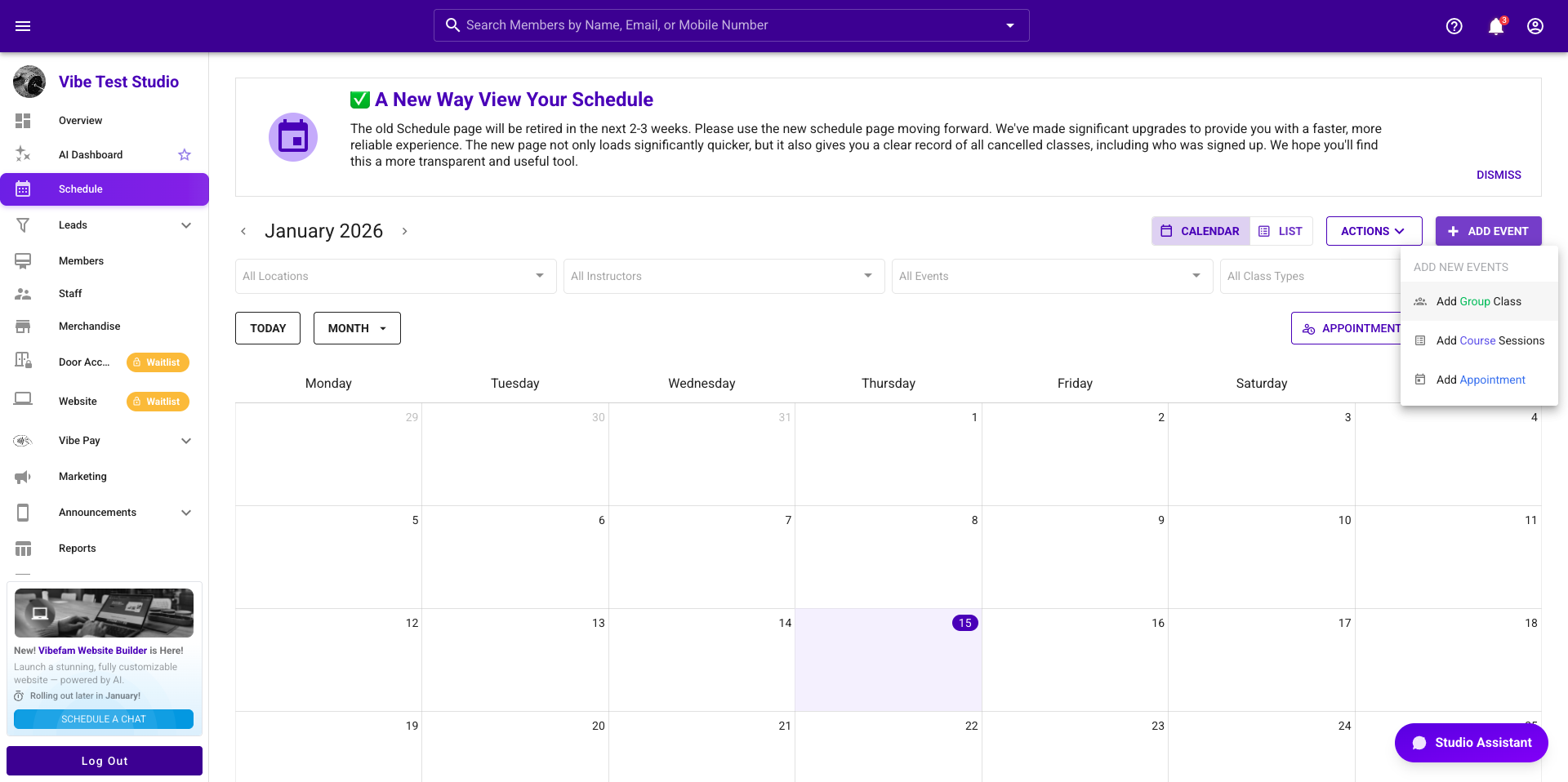
- Go to the Schedule tab.
- Add a new Group Class, Course or edit an existing template.
- Set your class name, instructor, credit value and floorplan as usual.
- The Waitlist will already be automatically enabled.
Vibefam’s support guide on adding class schedules walks through this process in detail, including screenshots for each field. You can refer to it here: Add Class Schedule – Studio Owners.
Step 2: Set your Booking Deadline in hours
Still in the same form:
- Find the Booking Deadline field.
- Enter the number of hours before class start when new bookings should close.
- Think about the type of class:
- High-demand reformer pilates or spin classes typically use stricter deadlines (for example 2–4 hours) so you have enough time to backfill from the waitlist.
- Lower-stakes open gym or community sessions might keep the window shorter to encourage attendance.
Step 3: Set your Waitlist Lock Period in minutes
Next:
- Find the Waitlist Lock Period field.
- Enter the number of minutes before class when Vibefam should stop auto-promoting waitlisted members.
- Choose a value that matches how far members usually travel and how often your classes overfill.
If you are not sure where to start, many studios begin with a lock period between 60 and 180 minutes (By default will be 120mins) for peak classes, then adjust once they see real behaviour. External guides on waitlist automation also recommend keeping a buffer so customers are not surprised by last-minute promotions.
Step 4: Save, test and clone your settings
Once you are happy with the rules:
- Save the class or course template.
- Check your booking website and Vibefam member app to confirm how full classes are displayed and when the “Join Waitlist” option appears. (VibeFam)
- Run a simple internal test:
- Book a class to full capacity.
- Join the waitlist from a test member account.
- Cancel one booking before the Waitlist Lock Period and confirm that the next waitlisted member is auto-added and notified.
- Repeat a cancellation inside the lock period and confirm that Vibefam does not auto-promote anyone.
We describe a similar test pattern in our article on selecting the best scheduling software for pilates studios, where we advise studios to validate their waitlist and lock period behaviour before committing to a system. You can see that checklist here: Best fitness class scheduling software for pilates studios.
When everything looks good, clone the template for other time slots or locations so you keep consistent rules across your schedule.
Member experience: what your clients see in the Vibefam app
Joining the waitlist when a class is full
From the member’s perspective, the process is straightforward:
- They open your studio’s Vibefam booking site or branded app.
- If a class still has space, they see a normal “Book” option.
- Once capacity is reached, the button changes to “Join Waitlist”.
- They tap to join and immediately see that they are waitlisted for that class.
What happens when a spot opens before the lock period
If a confirmed attendee cancels before the Waitlist Lock Period:
- Vibefam automatically selects the next person in the waitlist queue, based on when they joined.
- That member is auto-added to the class.
- They receive an instant notification that they now have a confirmed spot.
Done correctly, this kind of automated waitlist behaviour has been shown to keep fill rates high while reducing manual follow-up.
Inside the lock period and close to class time
Once the Waitlist Lock Period begins, Vibefam will no longer auto-promote members from the waitlist, even if several people cancel.
You still have options:
- Staff can manually add specific members from the waitlist if they know someone is nearby and ready.
- Or you can leave those spots empty, which is sometimes the right choice for highly technical sessions where last-minute additions are risky.

Admin experience: how your team monitors waitlists, cancellations and no-shows
Viewing rosters and waitlists at a glance
From your Vibefam business dashboard and coaches app, your team can see:
- The confirmed roster for each upcoming class.
- The waitlist, in the order members joined.
- Remaining spots and any last-minute cancellations.
Because bookings, waitlists and cancellations are all tied to the same class object, you do not need separate spreadsheets or external dashboards to understand what is happening.
When and how staff can override automation
Automation is the default in Vibefam, but you stay in control. At any time, staff can:
- Manually move a member from the waitlist into the class.
- Remove a member from the waitlist if they have told you they cannot make it.
- Add a replacement member if someone walks in and there is space.
This is useful for VIPs, visiting friends, or situations where you want to override the normal first-come, first-served pattern without changing your global rules.
How cancellations and no-shows feed into your reports and policies
Behind the scenes, every cancellation and no-show is tracked. That allows you to:
- Apply your late cancellation window and decide whether the credit is returned.
- Apply no-show penalties if your policy includes them.
- Generate reports on attendance patterns, cancellation rates and instructor utilisation through Vibefam’s analytics and AI dashboard.
If you want a broader playbook on shaping your policy itself, you can refer to our articles:
- How to reduce last-minute cancellations in your gym
- How to reduce no-shows in pilates and yoga studios
Both guides discuss how waitlists, booking windows and penalty rules can work together to protect revenue.
Recommended waitlist and cancellation settings for common studio scenarios
Every studio is different, but there are patterns that work well across many boutique fitness businesses. These examples are starting points that you can tweak once you see your own attendance data.
Peak-time popular classes
For evening strength, spin, or reformer sessions that always fill up:
- Booking Deadline: 2–4 hours before class.
- Waitlist Lock Period: 90–180 minutes before class.
- Policy: firm late-cancel window with clear communication that credits are forfeited for last-minute changes.
Beginner or intro series, workshops and courses
For beginner courses or one-off workshops where you want to be more flexible with nervous newcomers:
- Booking Deadline: 4–12 hours before the first session, depending on prep needs.
- Waitlist Lock Period: 120–240 minutes before start.
- Policy: clearer grace periods and more detailed pre-class reminders, especially for first-timers.
Off-peak or online sessions
For lunchtime classes, off-peak open gym or online sessions:
- Booking Deadline: 1–2 hours before class.
- Waitlist Lock Period: 60–90 minutes.
- Policy: more flexibility, but still with a clear rule so people do not get reassigned 5 minutes before class.
How to communicate your waitlist and cancellation rules so members follow them
Technology only works if everyone understands the rules. Studios that manage cancellations and no-shows well tend to over-communicate their policies in simple, friendly language.
Where to place your policy inside Vibefam and on your site
We recommend using a few consistent touchpoints:
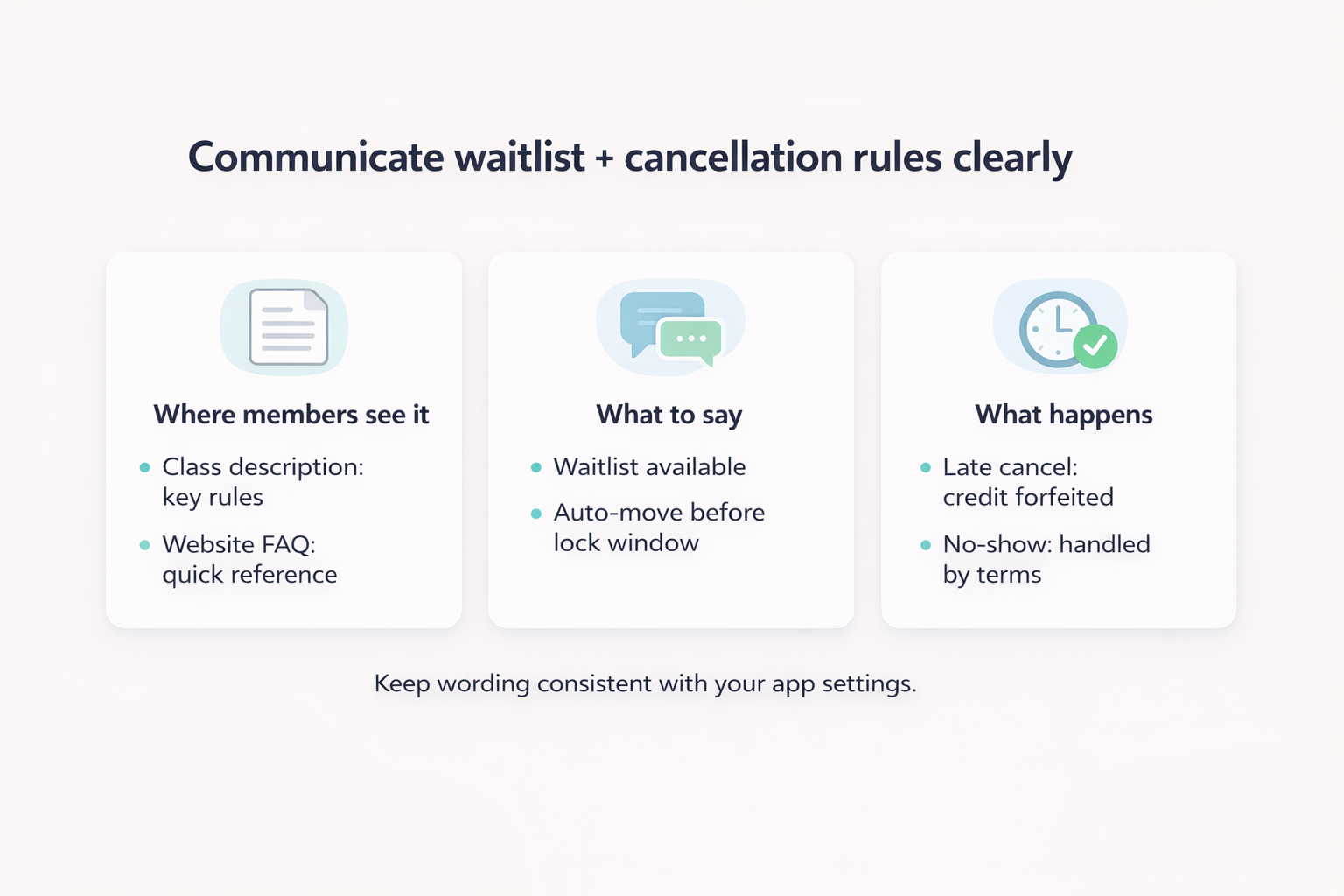
- Class descriptions: brief notes such as “Waitlist available. Two-hour booking deadline. Late cancellations within 12 hours will forfeit credits.”
- Membership agreement: a fuller explanation of cancellation windows, waitlist behaviour and no-show penalties, configured under your studio settings. (VibeFam Support)
- Welcome emails: a short “How bookings and waitlists work at our studio” section, with screenshots from the Vibefam member app.
- Website FAQ: a public reference members can share with friends.
Simple scripts you can adapt
Here are two short messages you can adapt to your own tone:
- For your website or welcome email “Our classes are small and fill up quickly. If a class is full, you can join the waitlist inside our Vibefam app. When a spot opens before our two-hour lock window, Vibefam will automatically move the next person in line into the class and send a notification. Cancellations after our 12-hour window are treated as late cancels and the credit will be forfeited.”
- For a one-time policy reminder “Quick reminder on how our booking system works. Every class has a booking deadline and a waitlist lock period so we can keep sessions full without last-minute chaos. If you cannot make it, please cancel early inside the Vibefam app so another member can take your spot. Late cancels and no-shows will be handled according to your membership terms.”
You can refine these with your own studio voice, but the key is that they match exactly what Vibefam is doing on the backend.
Quick FAQ: Vibefam’s automated waitlists, Booking Deadlines and Waitlist Lock Periods
Can Vibefam automatically move students from the waitlist when a spot opens? Yes. Once you have enabled waitlists for a class, Vibefam maintains a first-come, first-served queue. If someone cancels before the Waitlist Lock Period, the system automatically moves the next member from the waitlist into the class and notifies them by app notification or email, depending on your settings. (VibeFam Support)
How close to class time will Vibefam auto-add members from the waitlist? That depends on the Waitlist Lock Period you configure. Outside the lock period, Vibefam will auto-promote waitlisted members whenever a spot opens. Once the lock period begins, Vibefam stops automatic promotions so members are not added at the last minute. You can still move people manually if you choose. (VibeFam Support)
What happens if someone cancels after the Waitlist Lock Period? If a member cancels inside the lock window, Vibefam will respect your cancellation policy, but it will not automatically backfill the spot from the waitlist. You can decide whether to manually add another member or leave the spot empty. This design is intentional, so members are not surprised by last-minute changes.
Can my team manually override Vibefam’s waitlist promotions? Yes. Your admins and front-of-house staff can always move members between the waitlist and main roster from the class details screen. Automation handles most cases, but you stay in control for VIPs, walk-ins and special circumstances.
Does Vibefam track late cancellations and no-shows for reporting and penalties? Yes. Every cancellation and no-show is logged in Vibefam. This data powers your attendance reports, instructor performance views and AI dashboards, and can be linked to your late-cancel and no-show rules so penalties are applied consistently.